
Runtara Platform User Guide
This guide explains the main Runtara product areas from the perspective of an operator, builder, or analyst using the web application.
Use it as a reference for common platform tasks: building automations, connecting external systems, managing operational data, reviewing runs, and publishing reports.
Product Areas
| Area | Use it for | Guide |
|---|---|---|
| Getting started | First tour of the app, navigation, and core workflow | Getting started |
| Workflows | Build, validate, run, and inspect workflow automations | Workflows |
| Triggers | Start workflows from HTTP calls, schedules, and channel events | Triggers |
| Connections | Configure provider credentials and shared integrations | Connections |
| Database | Manage object types and records used by workflows and reports | Database |
| Reports | View, edit, explore, print, and publish operational reports | Reports |
| Files | Browse files created or used by workflow runs | Files |
| Invocation history | Review executions across workflows and triggers | Invocation history |
| Analytics | Monitor usage, system health, and rate limits | Analytics |
| Settings | Manage API keys and account-level controls | Settings |
| Troubleshooting | Diagnose common workflow, trigger, report, and connection issues | Troubleshooting |
Main Navigation
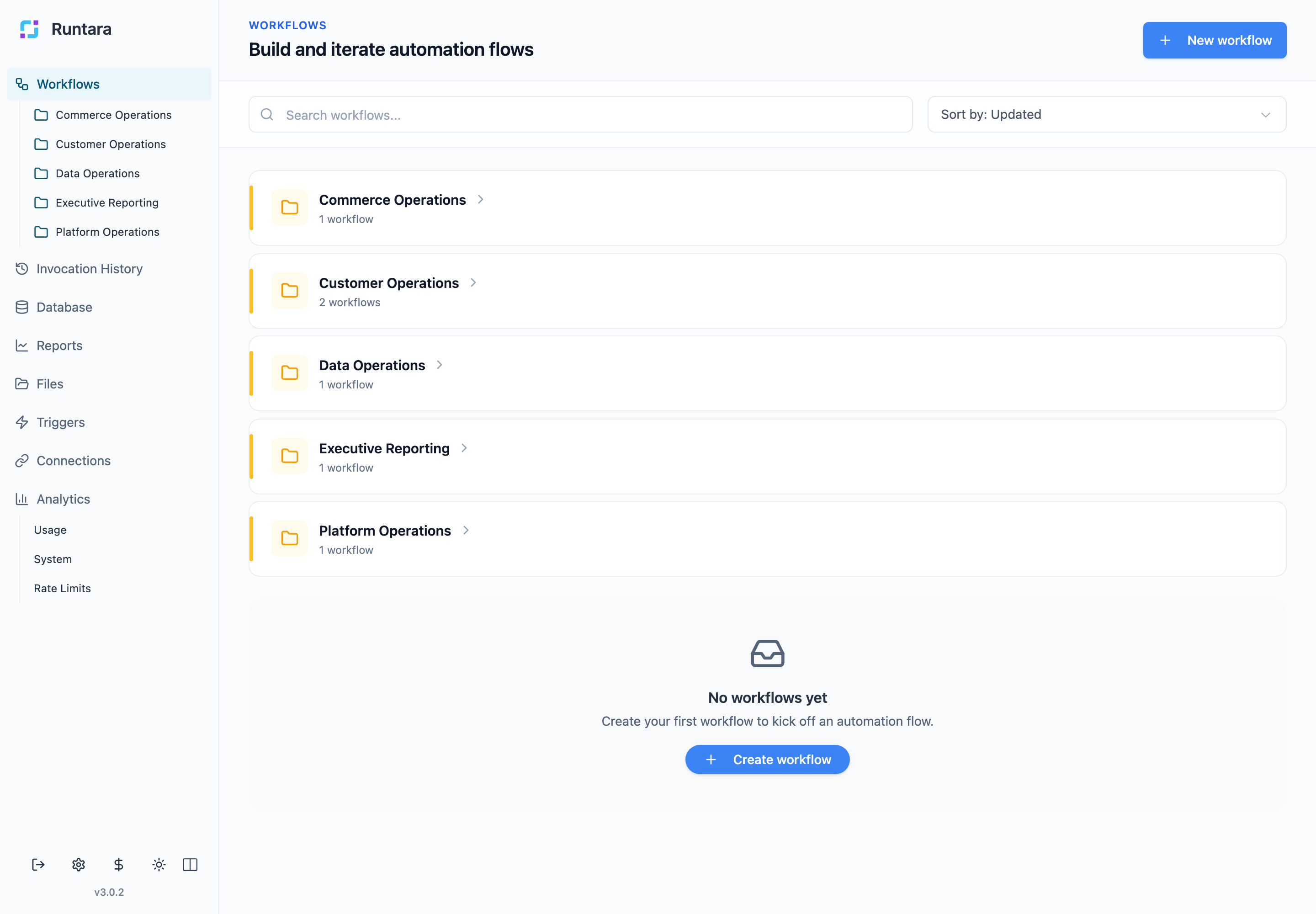
Runtara uses a persistent sidebar. Workflows, Database, Reports, Files, Triggers, Connections, and Analytics are top-level product areas. Workflow folders appear below the Workflows entry so teams can keep automations organized by function.
Suggested Learning Path
- Start with Getting started to learn the layout and main product areas.
- Read Workflows and Triggers together. Workflows define what happens; triggers define when they start.
- Use Connections, Database, and Files as supporting references while building.
- Use Reports, Invocation history, and Analytics to inspect results and operations.
- Keep Troubleshooting nearby when something does not render, run, or connect as expected.