
Workflows
Workflows define the automation logic Runtara runs. A workflow can be started manually, from chat, from a trigger, or from another workflow.
Find a Workflow
Open Workflows from the sidebar. The root page shows folders and workflows. Use folders to group workflows by operational area, team, lifecycle stage, or ownership boundary.
Open a workflow card to view or edit its definition.
Create a Workflow
Use New workflow from the Workflows page, then provide the workflow name and basic metadata.
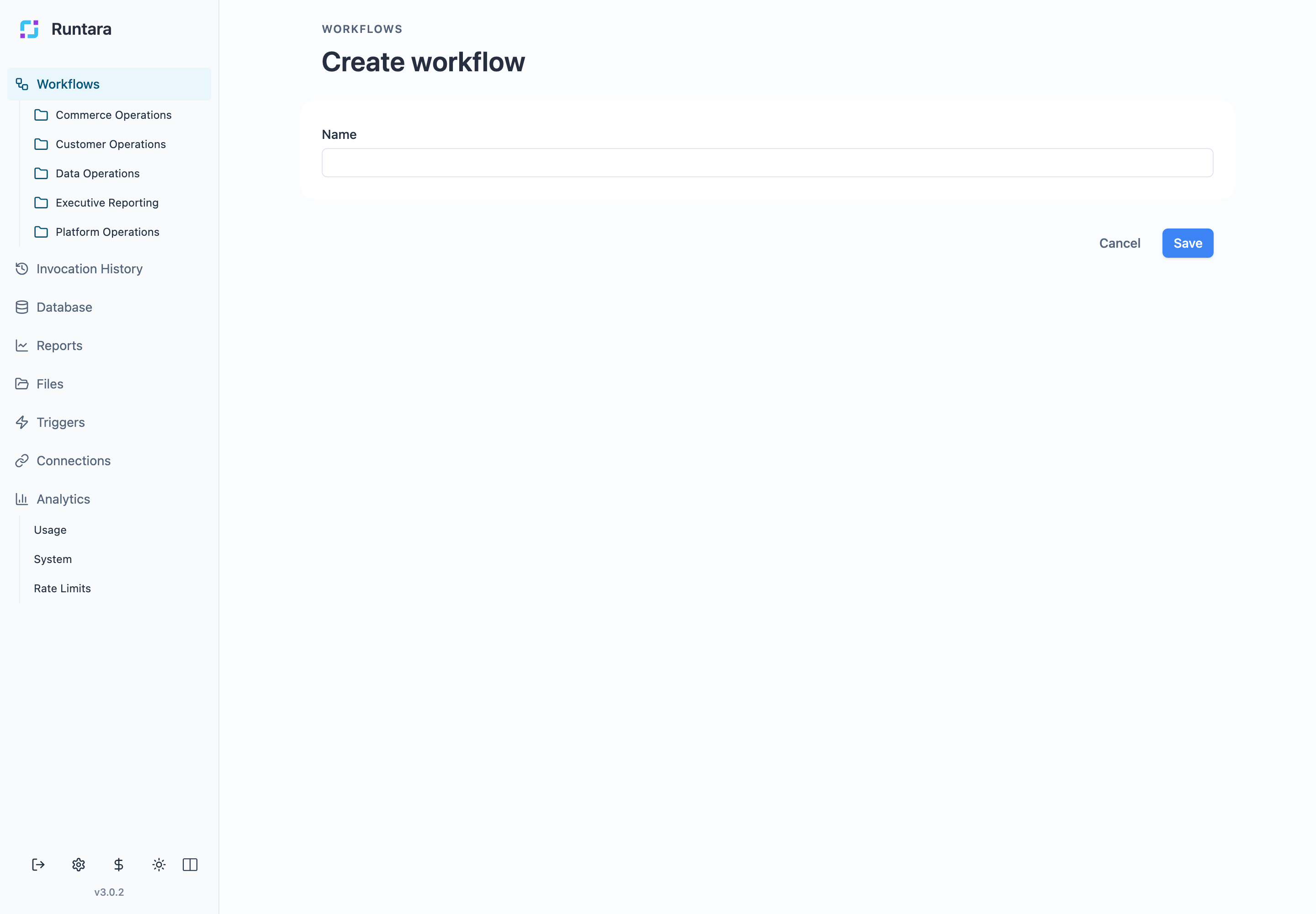
After creation, the workflow opens in the editor. Use a clear business name that describes the process, outcome, or owner. Good names make triggers, reports, and invocation history easier to understand later.
Use the Editor
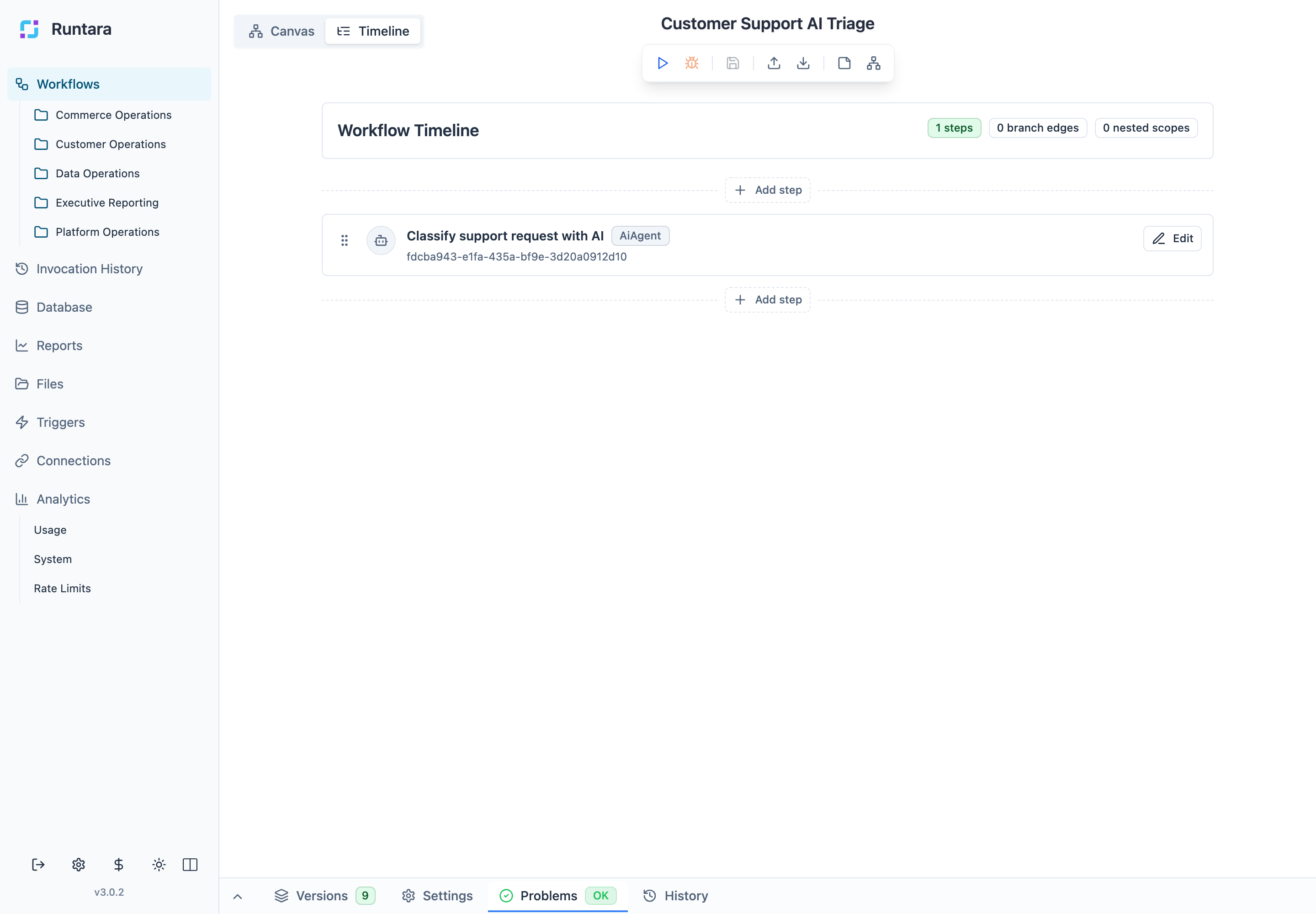
The workflow editor has two main views:
- Canvas: visual graph editing.
- Timeline: ordered step editing with a compact review surface.
The toolbar at the top of the editor includes actions for running, debugging, saving, importing/exporting, and switching editor tools. The bottom panel contains Versions, Settings, Problems, and History. Keep the Problems tab clean before publishing or wiring the workflow to a production trigger.
Add and Configure Steps
Use Add step in the editor to add workflow logic. A step can call an AI agent, log data, branch conditionally, split or group records, wait for a signal, embed another workflow, or finish the run.
For each step:
- Give the step a descriptive name.
- Choose the step type.
- Map inputs from trigger payloads, workflow variables, or previous step outputs.
- Attach a connection when the step calls an external provider.
- Save and review validation messages.
Run a Workflow
Use the run control in the workflow toolbar to execute the workflow manually. If a workflow accepts input, the run dialog asks for that input before starting.
After a run starts, use the execution panel and history views to inspect step output, errors, pauses, and logs.
Chat Workflows
Some workflows support chat-style runs. Open the workflow chat route from a workflow when the workflow is meant to handle conversational input. Chat runs still create execution records and can be reviewed from Invocation History.
Version and History
Use the Versions panel to inspect saved workflow versions. Use History to review recent runs for the current workflow. For organization-wide execution review, use Invocation history.
Good Practices
- Keep workflow names business-readable.
- Prefer one clear responsibility per workflow.
- Use folders to separate operational domains.
- Fix Problems before adding triggers.
- Use connections instead of hardcoding credentials.
- Use object types for reusable structured data instead of embedding large static lists in steps.