
Triggers
Triggers start workflows automatically. Use them when a workflow should run from an HTTP request, on a schedule, or in response to an application or channel event.
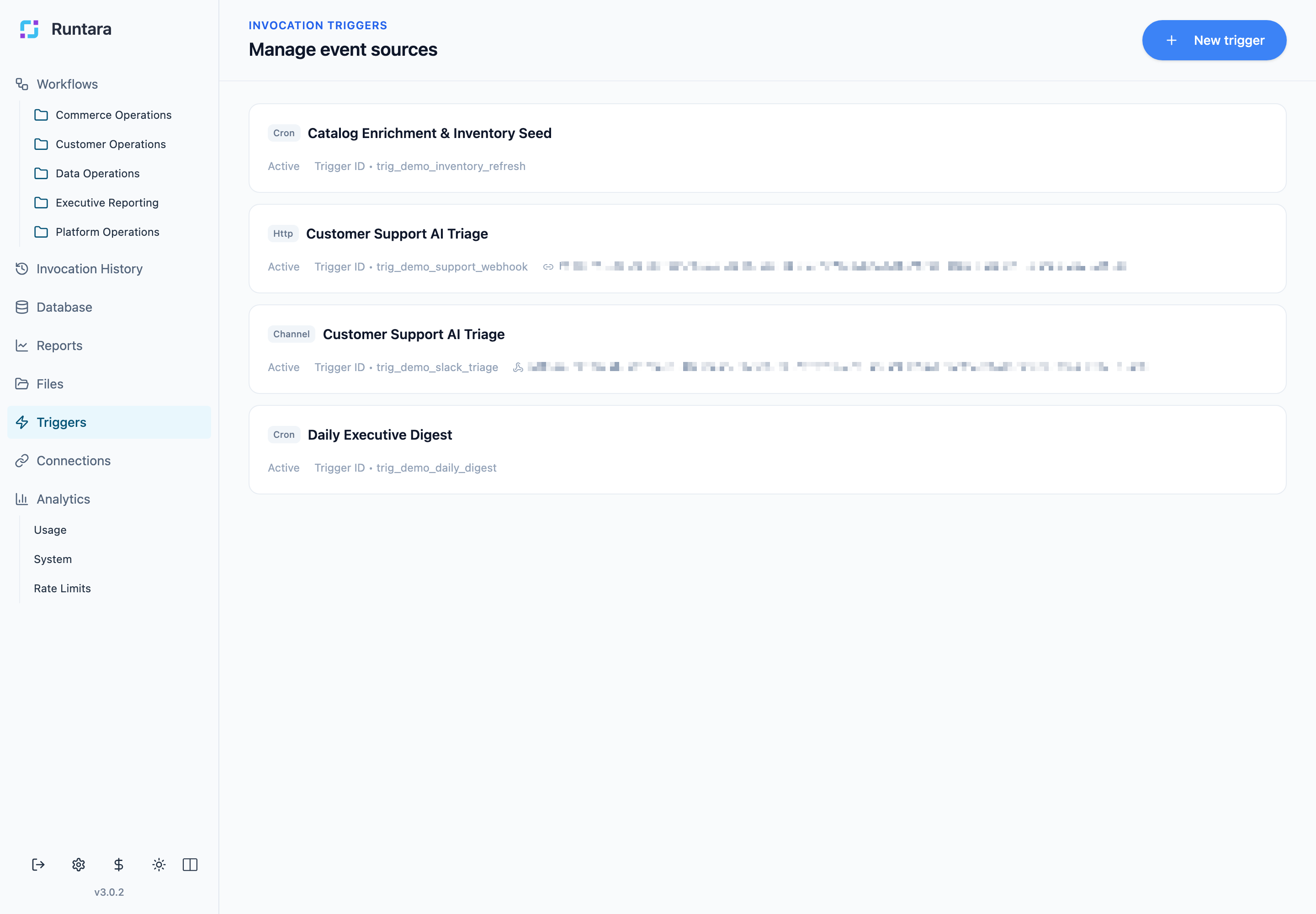
Trigger Types
Runtara supports these common trigger patterns:
- HTTP: expose an endpoint that can start a workflow.
- Schedule: run a workflow on a recurring schedule.
- Channel or event: start a workflow from an integrated application event.
Create a Trigger
Open Triggers, then choose New trigger.
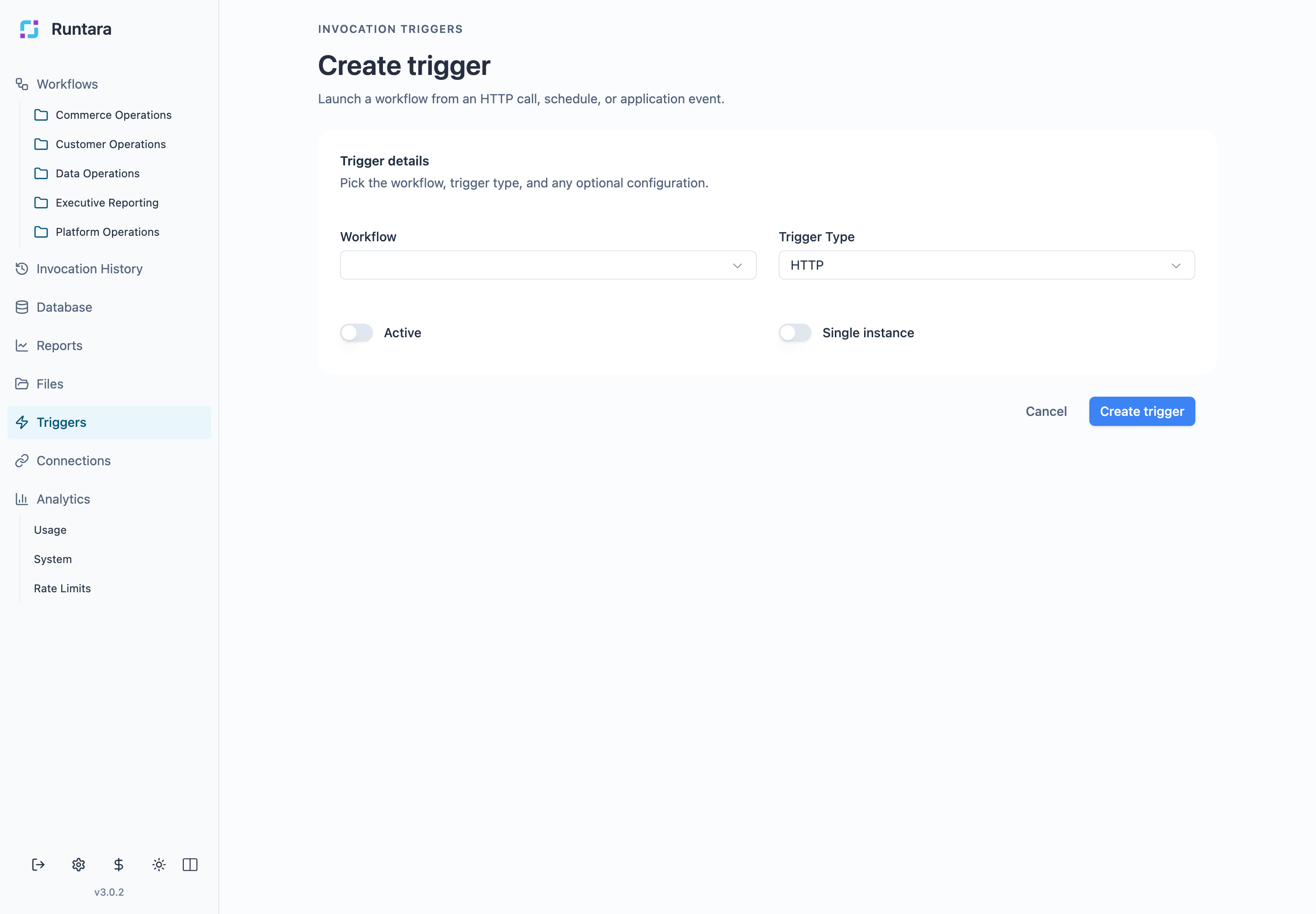
Choose:
- Workflow: the workflow this trigger starts.
- Trigger type: HTTP, schedule, or channel/event.
- Active: whether the trigger should run.
- Single instance: whether only one active run should be allowed at a time.
- Configuration: endpoint, schedule, channel connection, or event-specific fields.
HTTP Triggers
Use HTTP triggers when another system should start a workflow by calling Runtara. After creating the trigger, copy the endpoint from the trigger detail page and send the required input payload from the calling system.
Scheduled Triggers
Use scheduled triggers for recurring operational jobs such as daily digests, inventory refreshes, and health checks. Keep schedule names clear and document the intended timezone in the trigger description or workflow name when it matters.
Channel and Event Triggers
Use channel triggers when events arrive through a configured connection, such as a Slack support-alert connection. Select the connection, then configure the event-specific details shown by the form.
Operational Checks
After creating or editing a trigger:
- Confirm it is Active.
- Confirm it points to the intended workflow.
- Confirm any required connection exists and is healthy.
- Run or simulate the trigger once before relying on it.
- Use Invocation History to verify the workflow started and completed.