
Getting Started
Runtara is organized around workflows, operational data, integrations, and reports. Most users spend their time in the left sidebar, opening a product area and then drilling into a specific workflow, report, trigger, object type, or execution.
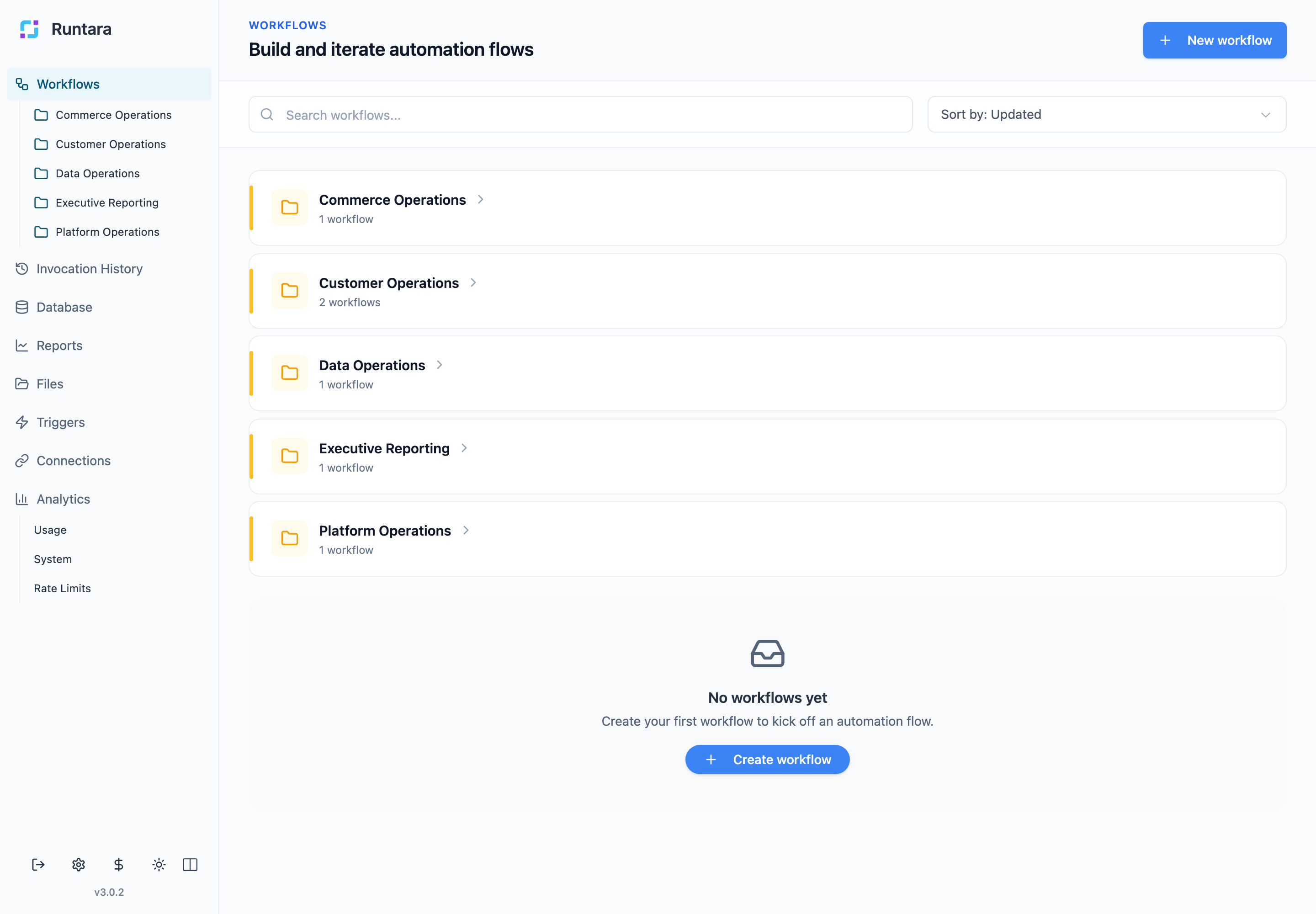
First Tour
When you sign in, start from the sidebar. The main areas are organized around the work required to build and operate automations:
- Workflows define the automation logic.
- Triggers decide when workflows start.
- Connections provide access to external systems and providers.
- Database stores structured operational data used by workflows and reports.
- Files holds uploaded, generated, imported, and exported assets.
- Reports present operational data for review.
- Invocation History shows what ran and where to inspect failures.
- Analytics summarizes usage, system behavior, and rate limits.
Navigate the App
Use the sidebar to move between product areas:
- Workflows: build and run automations.
- Invocation History: inspect executions across the organization.
- Database: manage object types and object records.
- Reports: view, edit, and print reporting pages.
- Files: browse stored files.
- Triggers: start workflows from HTTP calls, schedules, or events.
- Connections: configure reusable provider connections.
- Analytics: monitor usage, system behavior, and rate limits.
Workflow folders appear directly under Workflows. Open a folder to focus on one operational area, or return to the root Workflows page to see the full folder structure.
Typical Platform Flow
- Open Workflows and choose or create a workflow.
- Configure workflow steps and check the Problems panel.
- Add Connections or Database object types if the workflow needs external systems or structured data.
- Create a Trigger when the workflow should run automatically.
- Use Invocation History and Analytics to monitor runs.
- Use Reports to present the results to operators or stakeholders.
Where To Go Next
- Use Workflows when you need to build or inspect automation logic.
- Use Triggers when a workflow should run automatically.
- Use Connections before adding steps that call external systems.
- Use Database when workflows or reports need reusable structured data.
- Use Invocation History when you need to inspect a run.