
Connections
Connections store reusable integration configuration for workflows, triggers, file storage, and provider calls. They keep credentials and provider settings out of workflow step definitions.
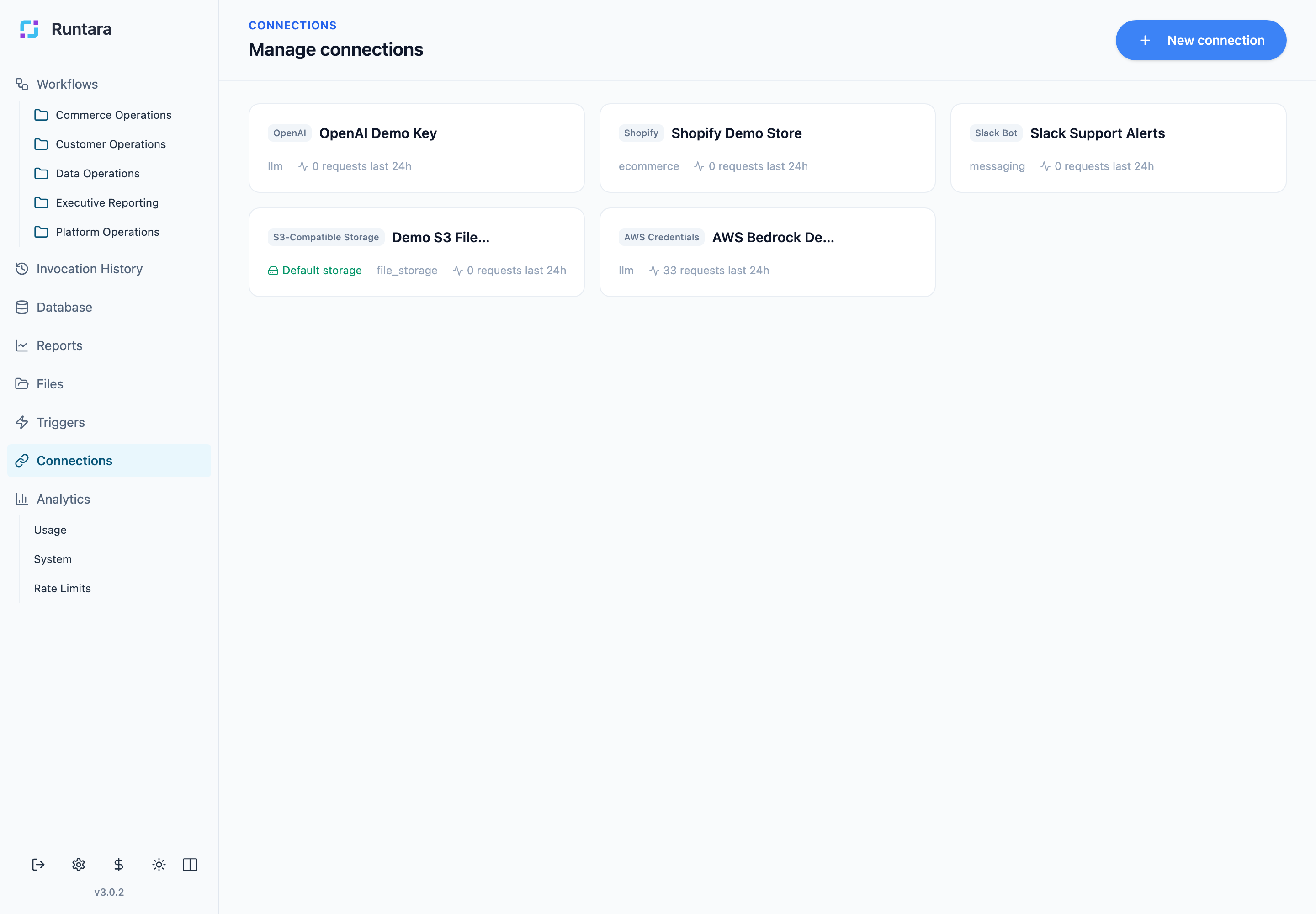
Review Connections
Open Connections from the sidebar to view configured integrations. Each card shows the provider type, connection name, category, and recent request activity.
Use the list to confirm which integrations are available before wiring a workflow step or trigger to an external system. If a workflow uses the wrong connection, update the workflow or trigger configuration rather than changing a shared connection unexpectedly.
Create a Connection
Use New connection, choose a provider type, then complete the provider-specific form. Required fields vary by provider.
Use descriptive names. A name that describes the business purpose, owner, or provider account is easier to choose in workflow and trigger configuration than a generic placeholder.
Default File Storage
One file-storage connection can be marked as the default storage target. Workflows that create or upload files use this connection when they do not specify a more specific storage destination.
Rate Limits and Usage
Connection cards show recent request counts. Rate-limit configuration is provider-specific and may also appear in Analytics under Rate Limits.
Operational Practices
- Use names that describe the business purpose of the integration.
- Use separate connections when workloads have different permissions, owners, or rate-limit needs.
- Review recent request activity before changing a connection used by active workflows.
- Choose the default file-storage connection intentionally, because workflows can rely on it when no storage target is specified.