Data and Mappings
Every field of a step gets its value from a mapping: a fixed value you type, a reference to data in the run, a template that builds text, or an object or list you build field by field. This page shows how to use them, with a real workflow as the example. For exact syntax, every path root, and the validation messages, see the Mapping reference.
The example
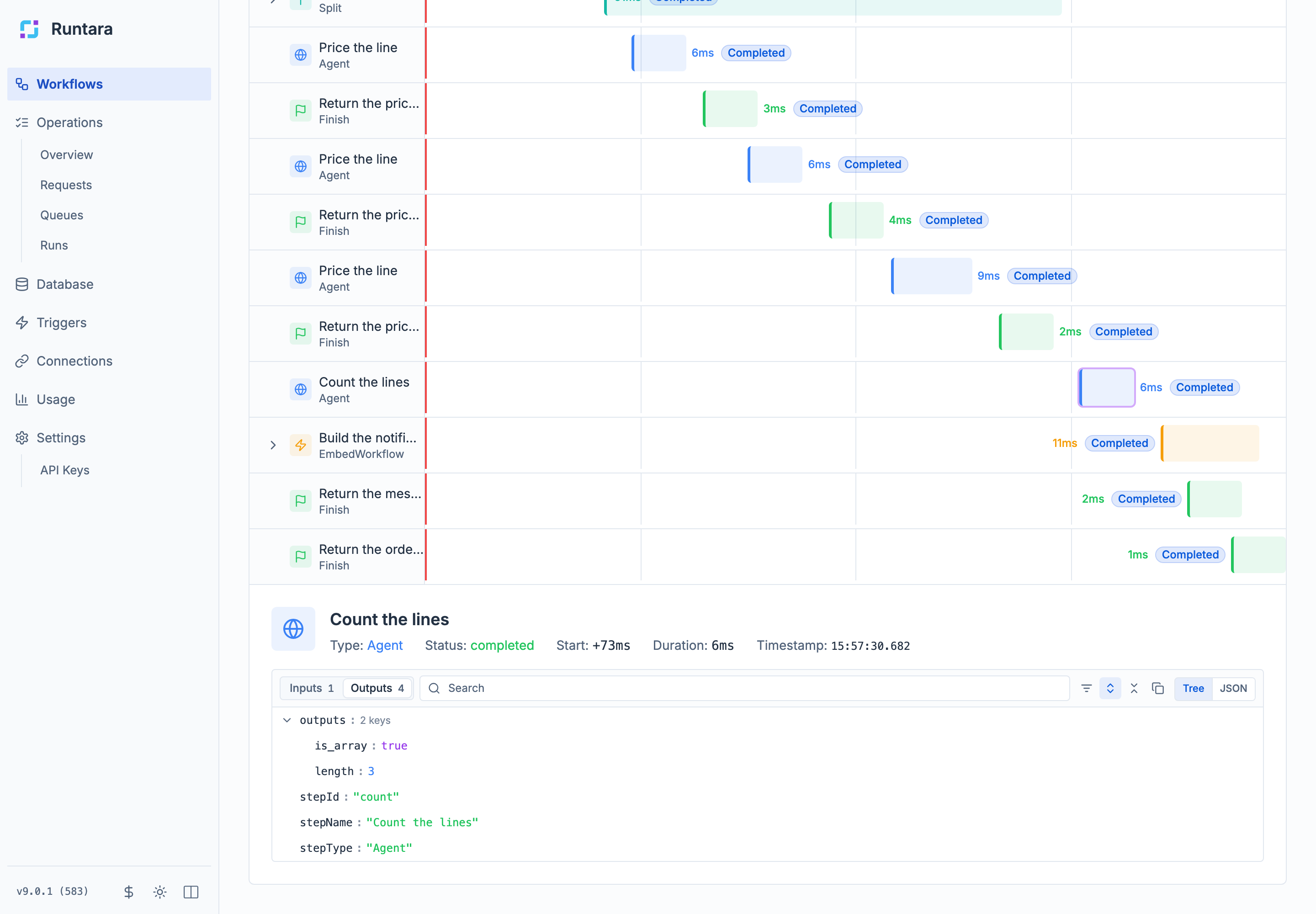
The examples on this page come from Mapping tour: order intake, a workflow that receives an order over HTTP and:
- finds the supplier in the Database;
- prices each order line in a Split step;
- counts the lines;
- starts a child workflow, Mapping tour: notification text, that writes the notification subject and body;
- returns an order summary.

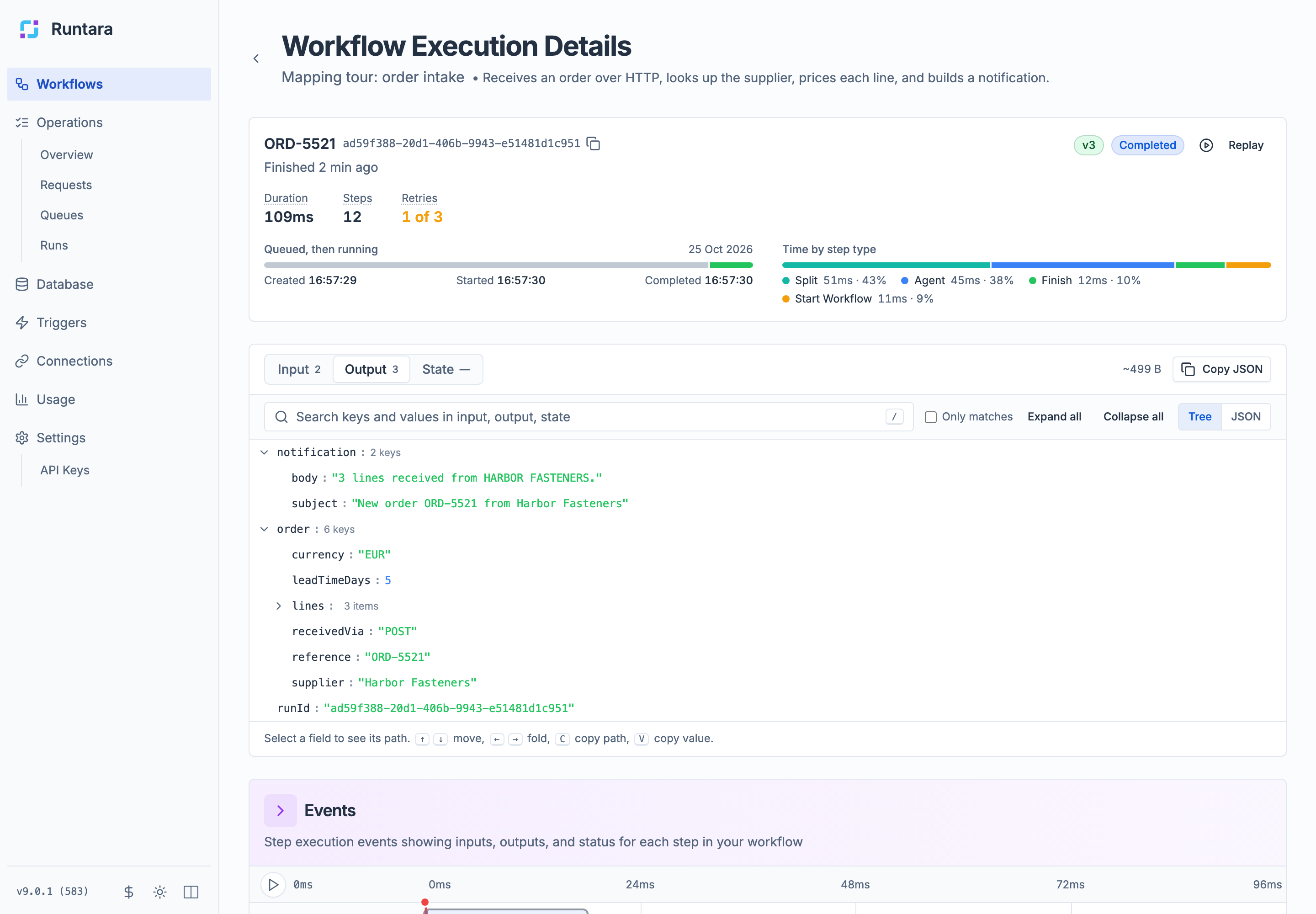
An order posted to its HTTP trigger with the label ORD-5521 returned this summary. Every value in it was mapped from the input or from an earlier step:
Where data comes from
A step can read anything the run already has:
| You want | Write | Example |
|---|---|---|
| The run’s input | data.<field> |
data.body.supplier |
| A workflow variable | variables.<name> |
variables.currency |
| An earlier step’s result | steps.<step id>.outputs.<field> |
steps.count.outputs.length |
| The original input, from inside a loop | workflow.inputs.data.<field> |
workflow.inputs.data.body.reference |
| The current loop position or item | iteration.index, iteration.item, item |
iteration.index |
| The error being handled | steps.__error.<field> |
steps.__error.code |
The run also has built-in variables: variables._workflow_id, variables._instance_id (the run ID), and variables._tenant_id. The tour returns its own run ID with variables._instance_id.
Choose a mode
Each field has a mode button next to it. Hover it to see the current mode; select it to switch to the next one.
| Mode | The field holds | Result |
|---|---|---|
| Value | A fixed value: text, a number, true or false, an object, or a list. | Exactly what you typed. |
| Reference | A path to data in the run, picked from a list. | The value at that path, with its type: a number stays a number, a list stays a list. |
| Template | Text with placeholders such as {{ data.body.supplier }}. |
Always text. |
| Build | An object or list whose fields each have their own mode. | An object or list. |
Use Reference when you need a value as it is, and Template when you need words around it. A template turns everything into text: {{ data.amount }} gives "1250.75", not the number 1250.75.
Pick a reference
Select an empty reference field (Click to select a variable…) to open Select Variable. It lists what the step can use, grouped as Workflow Inputs, Variables, and Step Outputs from earlier steps. Type to search. Inside a loop, it also shows Iteration Context and the loop’s own scope.
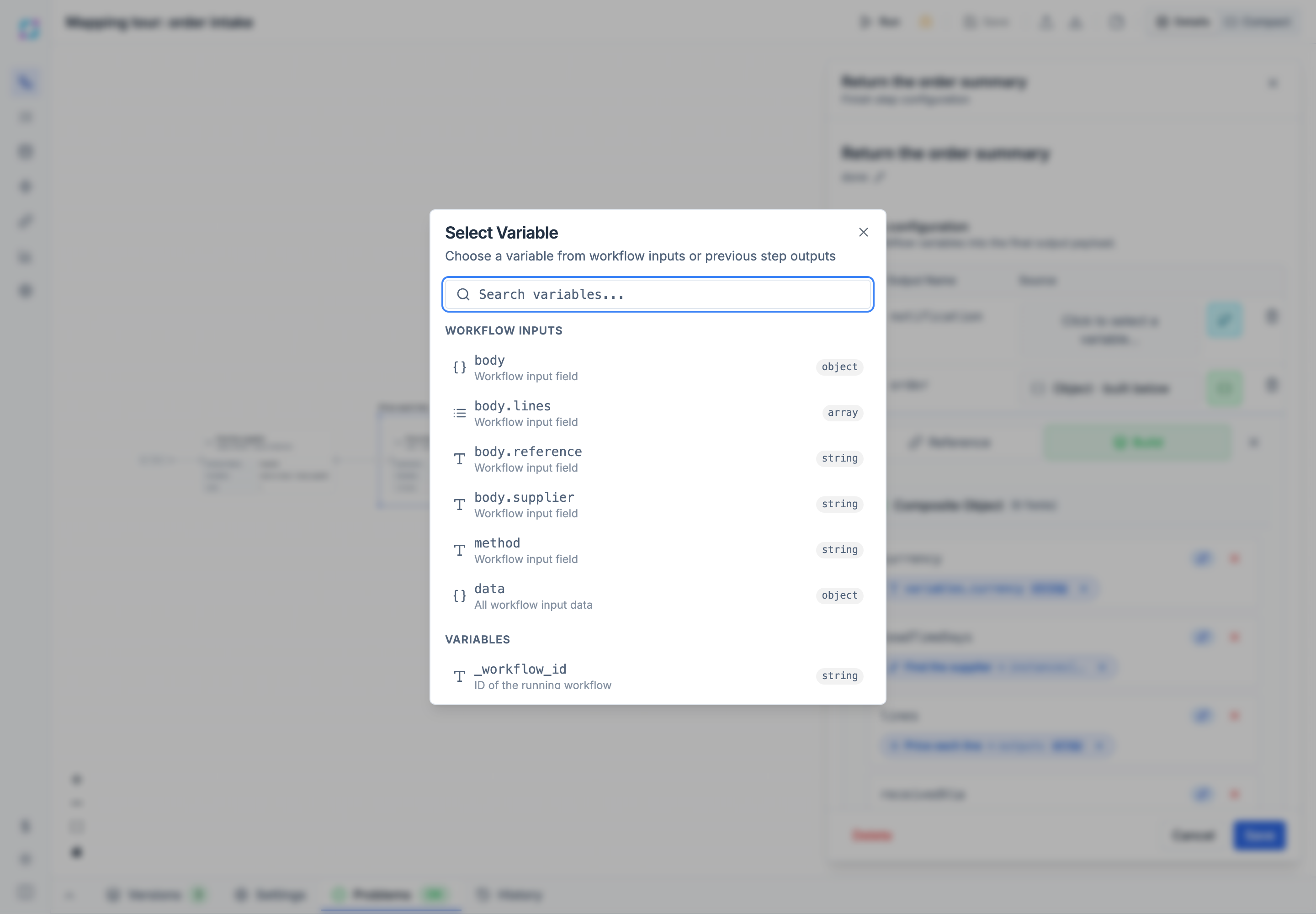
The chosen reference appears as a pill. A pill shows the step’s name and the path, such as Price each line → outputs, and the value’s type, such as array. Select the × on the pill to clear it.
Below a reference you can enter a Fallback value. It is used when the referenced value is missing or null. In the tour, supplier falls back to Unknown supplier when the Database lookup finds nothing.
Read the run input
The run input is under data. Its shape depends on how the run started:
- Run dialog, API, and Start Workflow steps: the fields of the workflow’s Input settings, for example
data.amount. - HTTP triggers: the whole HTTP request. The posted body is under
data.body, withdata.method,data.path,data.query,data.uri, anddata.content_typebeside it. The tour readsdata.body.supplier,data.body.reference, anddata.body.lines, anddata.methodis"POST".
The Input tab of a run’s execution details shows exactly what arrived, so you can copy the paths from there:
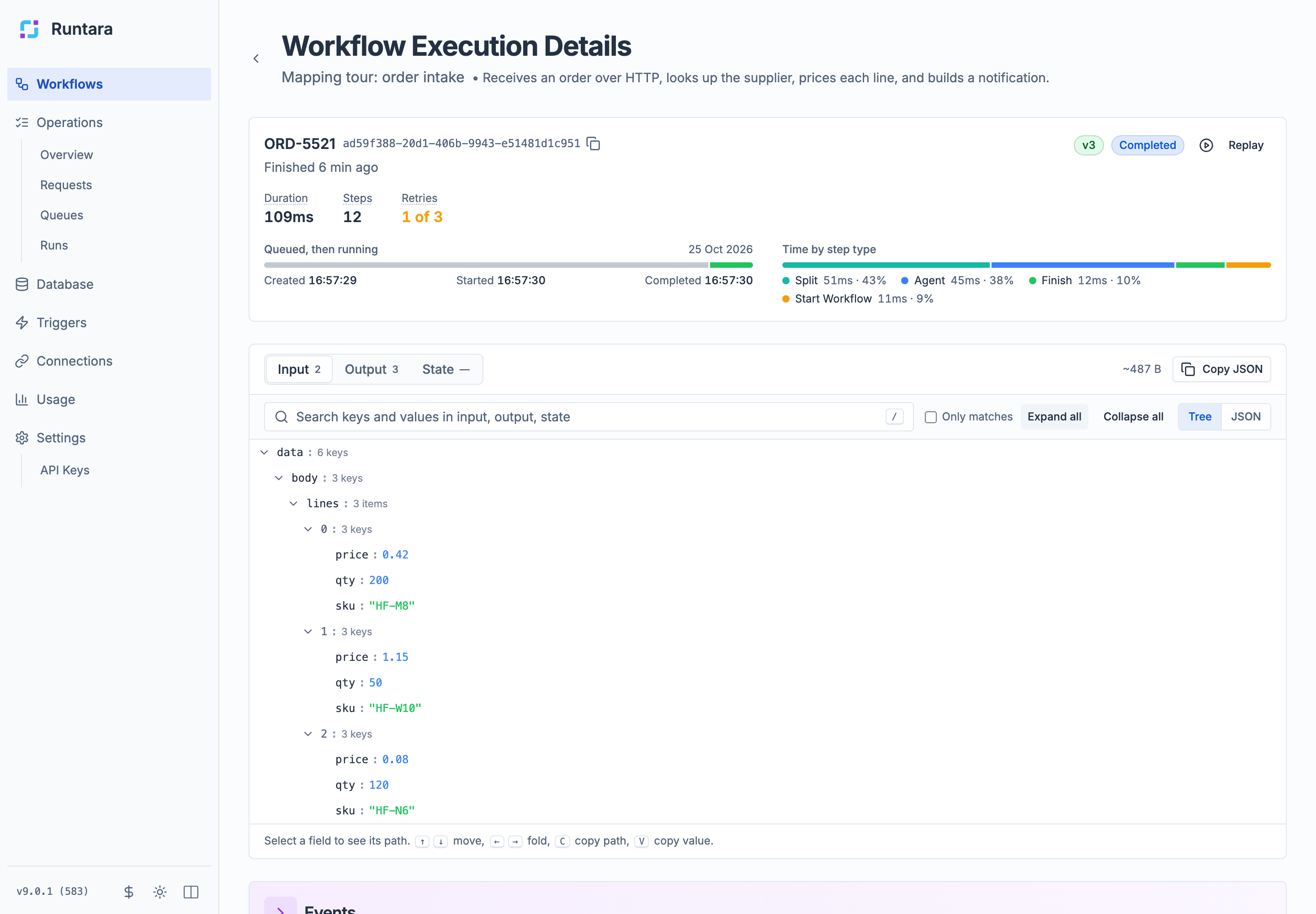
Adding ?runLabel=ORD-5521 to the trigger URL gives the run that label.
Use an earlier step’s output
A step’s result is under steps.<step id>.outputs. The step ID is shown under the step’s name in its panel, and the Output section of the panel shows what the step produces. The result’s shape depends on the step:
| Step in the tour | Returns | Mapped as |
|---|---|---|
| Find the supplier (Object Model, Query Instances) | An object with instances, total_count, and success |
steps.lookup.outputs.instances[0].name |
| Price the line (Utils, Calculate) | A plain number | steps.price.outputs |
| Count the lines (Transform, Array Length) | An object with length |
steps.count.outputs.length |
| Build the notification (Start Workflow) | The child workflow’s output | steps.notify.outputs.subject |
| Price each line (Split) | A list with one result per item | steps.lines.outputs |
A Filter step returns count and items, a While step returns iterations and the last pass’s outputs, and a Wait for Signal step returns the answer’s fields, for example steps.review.outputs.decision.
A step can only use steps that run before it. Referring to a later step is rejected when you save.
Build text with templates
Use Template mode to put data into text: email subjects, messages, prompts, or file names. Templates use the Jinja style: {{ }} for values, {% if %} and {% for %} for logic, and | for filters.
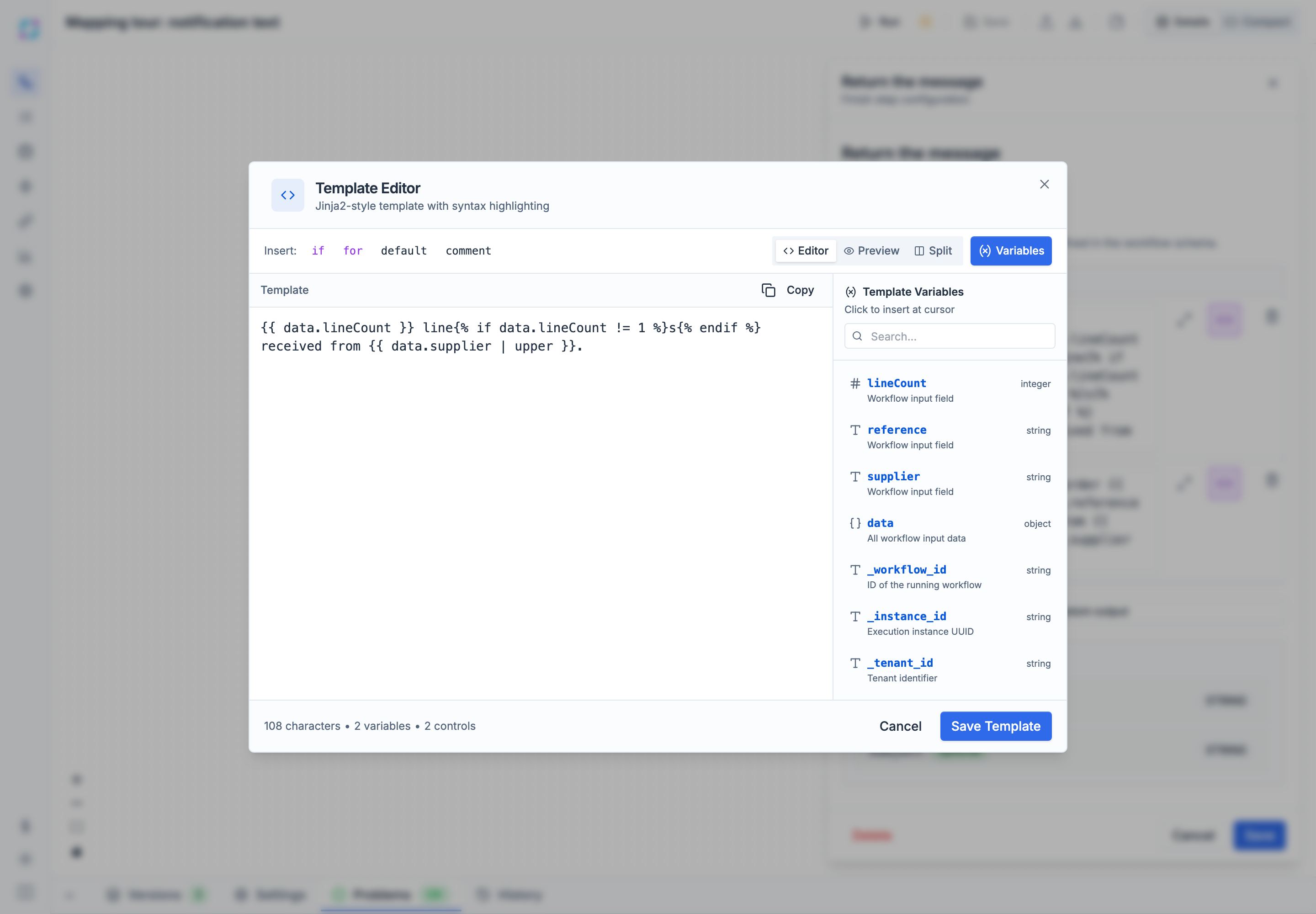
The child workflow in the tour builds its notification with two templates:
New order {{ data.reference }} from {{ data.supplier }}{{ data.lineCount }} line{% if data.lineCount != 1 %}s{% endif %} received from {{ data.supplier | upper }}.For the ORD-5521 run they produced New order ORD-5521 from Harbor Fasteners and 3 lines received from HARBOR FASTENERS.
Select the template editor button on a template field to open the Template Editor. It inserts if, for, default, and comment snippets, has Editor, Preview, and Split views, and lists the variables you can use, including the built-in ones.
Two rules to remember:
- A missing field renders as nothing:
[{{ data.nope }}]gives[]. Use| default("none")to show something instead. - Reading a field of something that does not exist fails the run, for example
{{ input.name }}when there is noinput. Saving warns about templates that read fields the workflow does not declare.
The Mapping reference lists the common filters with examples.
Build objects and lists
Use Build mode when a field needs an object or a list, such as a record to save or a request body. Choose Composite Object or Composite Array, then add fields; each field has its own mode.
The tour’s summary is built this way: reference and receivedVia are references to the input, supplier and leadTimeDays are references to the lookup, lines is the Split’s list, and currency is a variable.
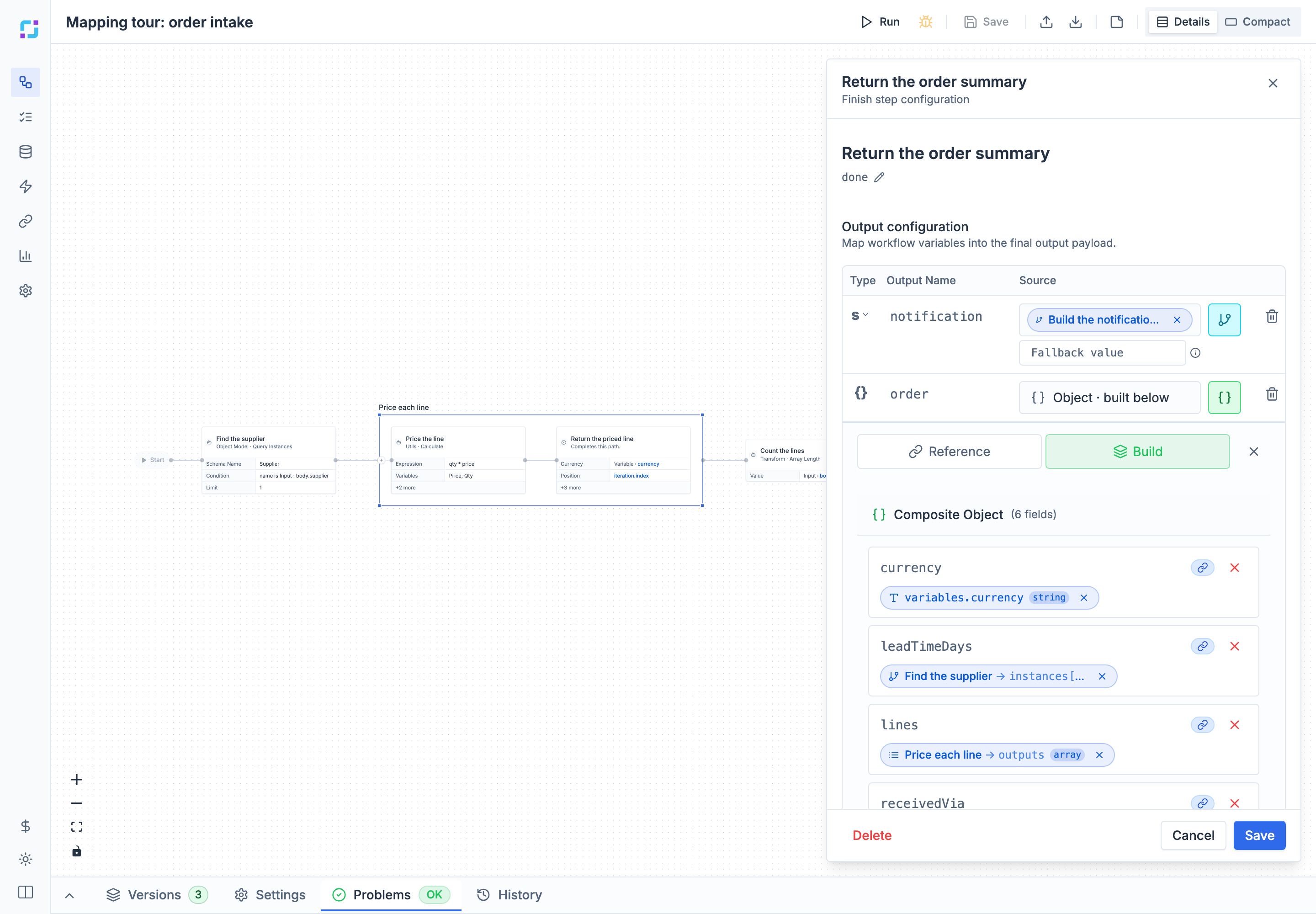
Fields can be nested: a built list can hold built objects, and a built field can be a template.
Work with lists
Run steps for each item with Split
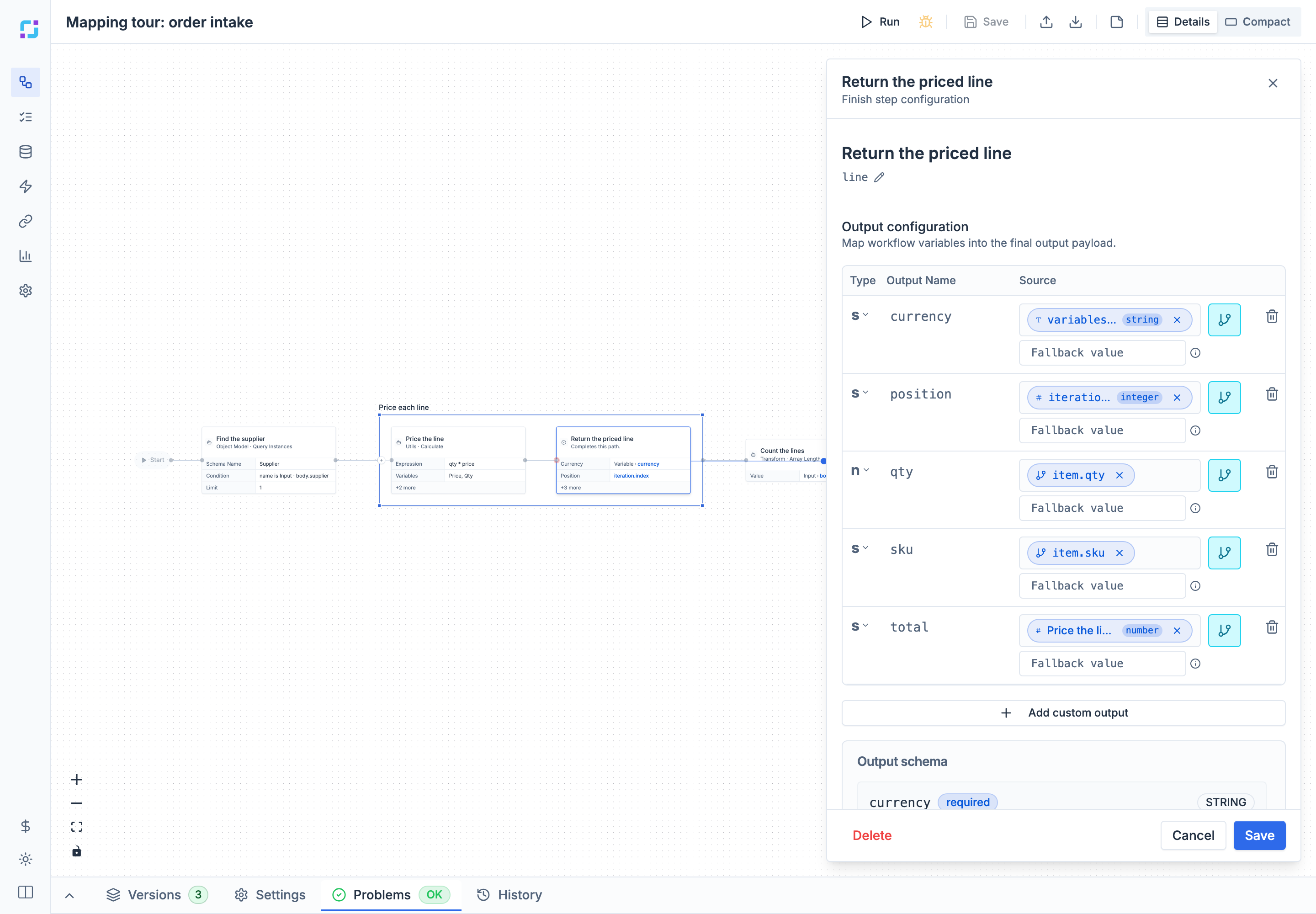
A Split step runs its inner steps once per item. Inside the Split:
itemis the current item, anditem.skuone of its fields.dataanditeration.itemare the same item.iteration.indexis the item’s position, starting at 0.workflow.inputs.data.*still reads the run’s original input, and workflow variables such asvariables.currencywork as usual.- Steps outside the Split are not visible inside it. To use an earlier step’s result, pass it under the Split’s Variables, for example
rateset tosteps.rate.outputs.eur, and read it inside asvariables.rate. Referring to the outside step directly is rejected when you save.
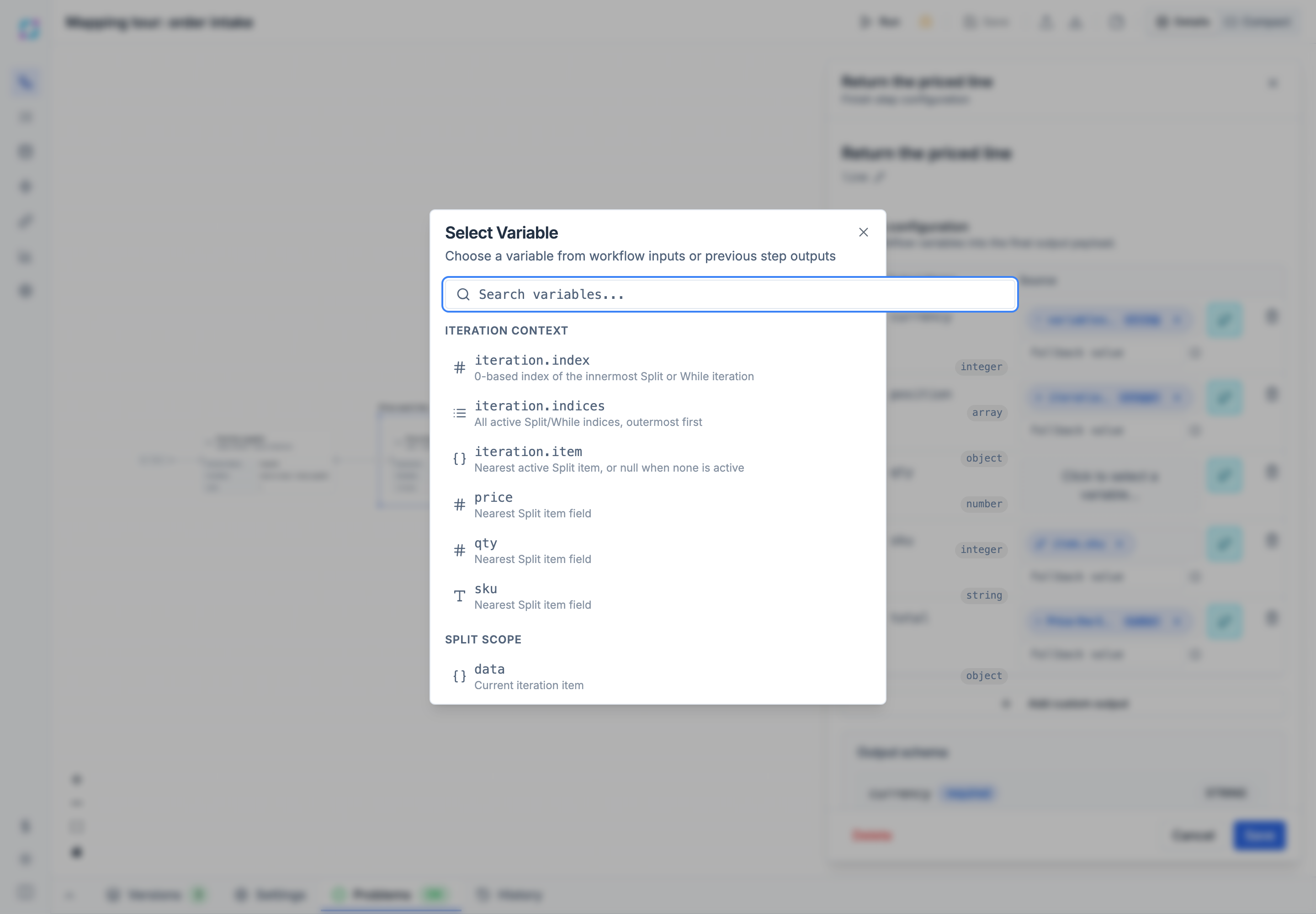
The Select Variable dialog inside a Split lists the iteration context and the item’s fields:
The Split’s result is a list with one entry per item, in order. For the tour it is three priced lines, each with position, sku, qty, total, and currency.
Keep some items with Filter
A Filter step’s condition refers to the item being tested as item, for example item.qty greater than 1. It returns the kept items and their count.
Repeat with While
Inside a While step and its condition, loop.index (and iteration.index) is the pass number, starting at 0, and loop.outputs.<field> is what the previous pass returned. Pass outside values in with the While step’s Variables. The step returns iterations and the last pass’s outputs.
Handle missing or messy data
- A missing path gives null. A field that is not there, or a list position past the end, resolves to null without failing the step. Add a Fallback value where you need a value.
- Numbers in text fail fast. When a reference is read as a number and the text cannot be read as one, such as
"twelve", the step fails with cannot be coerced to integer. Add a fallback value to use a default instead. - Text from other systems can be turned into numbers, true or false, or parsed objects with a type hint. See Type hints.
Use the error in an error handler
On the path an error handler takes, steps.__error holds the error that sent the run there:
| Field | Example |
|---|---|
steps.__error.code |
HTTP_5XX |
steps.__error.message |
HTTP 502: {"error":"Upstream request failed"} |
steps.__error.category |
transient |
steps.__error.severity |
warning |
steps.__error.stepId |
call |
steps.__error.retryable |
true |
A template such as {{ steps.__error.code }} in {{ steps.__error.stepId }} gives HTTP_5XX in call. The older spellings error.message and __error.message still work but warn when you save.
Check your mappings
- When you save, Runtara checks every reference. A path to a step that does not exist, a field the input does not declare, a variable that is not defined, or
iterationused outside a loop stops the save with a message that names the step and usually suggests the right name. The validation messages list explains each one. - A warning that a path “cannot be validated statically” means the path goes inside an object whose fields the schema does not list. The workflow saves; check the value in a test run.
- After a run, open its execution details. The Input, Output, and State tabs show the run’s data. Under Events, select a step’s bar to see the Inputs it actually received and the Outputs it produced.