
Operations Overview
Operations is where you run the business side of your automations: answer the decisions workflows are waiting on, follow runs, and spot failures. It has four pages, all under Operations in the sidebar:
- Overview: a single screen with the counts that need attention, the open requests, and the latest runs.
- Requests: every open decision across all workflows. See Requests and queues.
- Queues: saved, team-shared lists of one workflow’s requests or runs. See Requests and queues.
- Runs: every workflow run, with filters, status tabs, and run controls. See Runs.
Renamed: Operations replaces the old Invocation History page. Old links to
/invocation-historyopen Operations > Runs with the same filters.
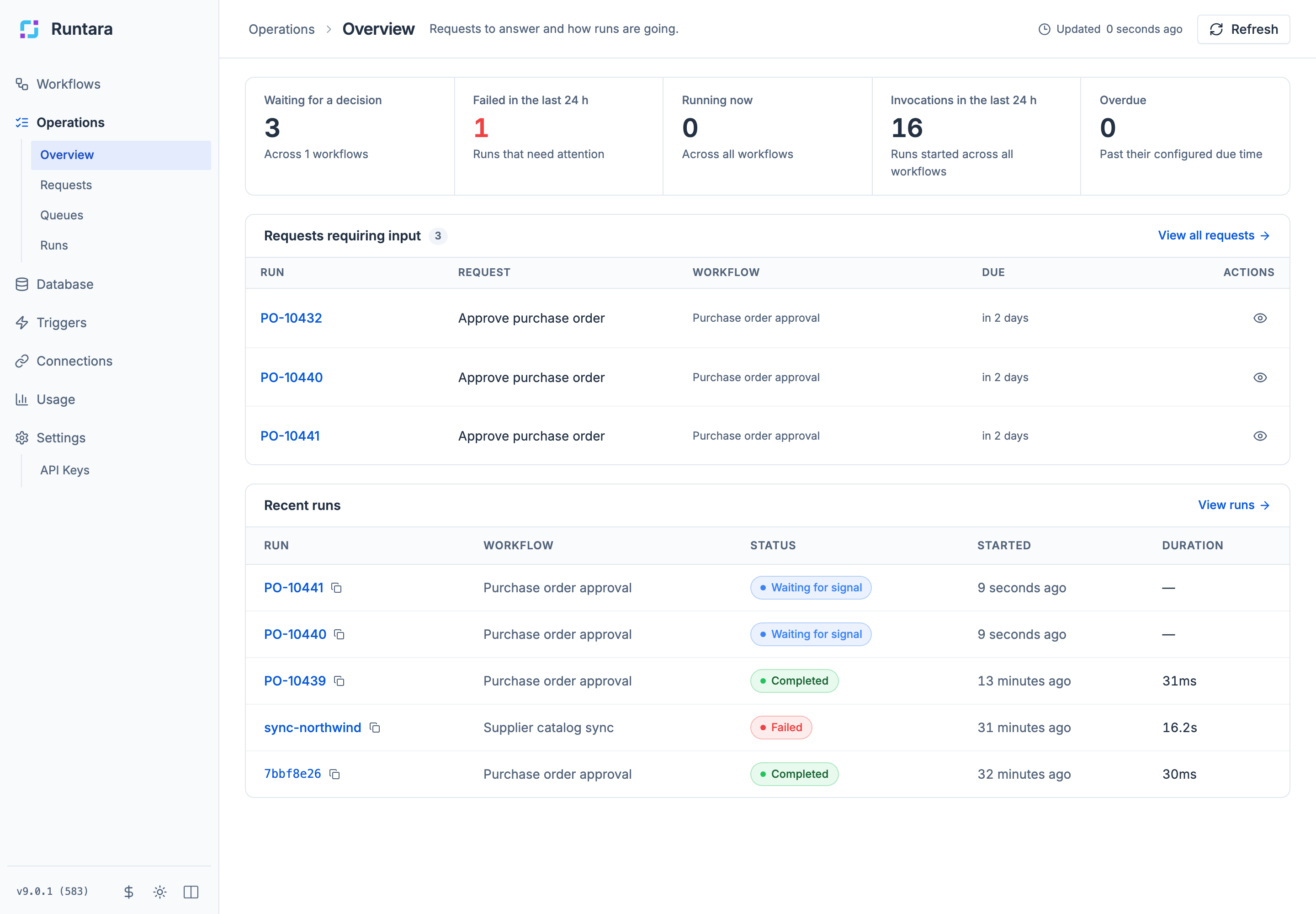
The overview tiles
The strip at the top of the overview shows five numbers. Each tile is a link to the filtered list behind it.
| Tile | What it counts | Opens |
|---|---|---|
| Waiting for a decision | Open requests across all workflows. The note says how many workflows they come from. | Requests |
| Failed in the last 24 h | Runs that failed or timed out in the last 24 hours. The number turns red when it is above zero. | Runs, filtered to failed and timed-out runs completed in the last 24 hours |
| Running now | Runs executing right now. | Runs, filtered to Running |
| Invocations in the last 24 h | Runs started in the last 24 hours, across all workflows. | Runs, filtered to the last 24 hours |
| Overdue | Requests whose due time has passed. | Requests, Overdue tab |
The Overdue tile only counts requests in a queue that has a Due field. Until a queue has one, the tile reads Not tracked yet and links to Queues so you can set one up. See Track due dates.
A dash (—) means the number is still loading or could not be read.
Requests requiring input
This panel lists up to six open requests, overdue ones first and then the oldest. Each queue contributes at most three rows, so one busy workflow cannot hide the others.
| Column | Shows |
|---|---|
| Run | The run label, or the first eight characters of the run ID when the run has no label. |
| Request | The name of the step that is waiting. |
| Workflow | The workflow the run belongs to. |
| Due | When the request is due, or Overdue with a warning icon. A dash means no queue tracks a due date for this request. |
| Actions | Review request (eye icon) opens the run page, where you answer. |
Use View all requests to open the full Requests page. When nothing is waiting, the panel shows No requests need input.
Recent runs
The five most recently started runs, with their workflow, status, start time, and duration. Select a run label to open it, or use the copy icon next to the label to copy the run ID. View runs opens the full Runs page.
Refreshing
Operations pages refresh themselves: the overview, Requests, and Runs every 30 seconds, and a queue or run page every 10 seconds. Updated … ago shows the age of the data on screen, and Refresh reloads it immediately.
If some data could not be loaded, a banner says Some Operations data could not be refreshed. Try Refresh. The rest of the page keeps working.
Who can do what
- Viewing Operations requires permission to read run history.
- Answering requests, and replaying, stopping, or resuming runs, requires permission to execute workflows. Without it, answer controls read Read only.
- Creating, editing, and deleting queues requires permission to update workflows.
Related
- Requests and queues: answer decisions and build team queues.
- Runs: filter runs and inspect a single run.
- Usage: execution volume, success rate, and host capacity over time.