
Workflow Steps
A workflow is made of steps. To add one, use a + button on the canvas (see Workflow editor). The Add Step picker lists the step types first and the agents after them. Search by name or by what you want to do, for example “email” or “csv”.
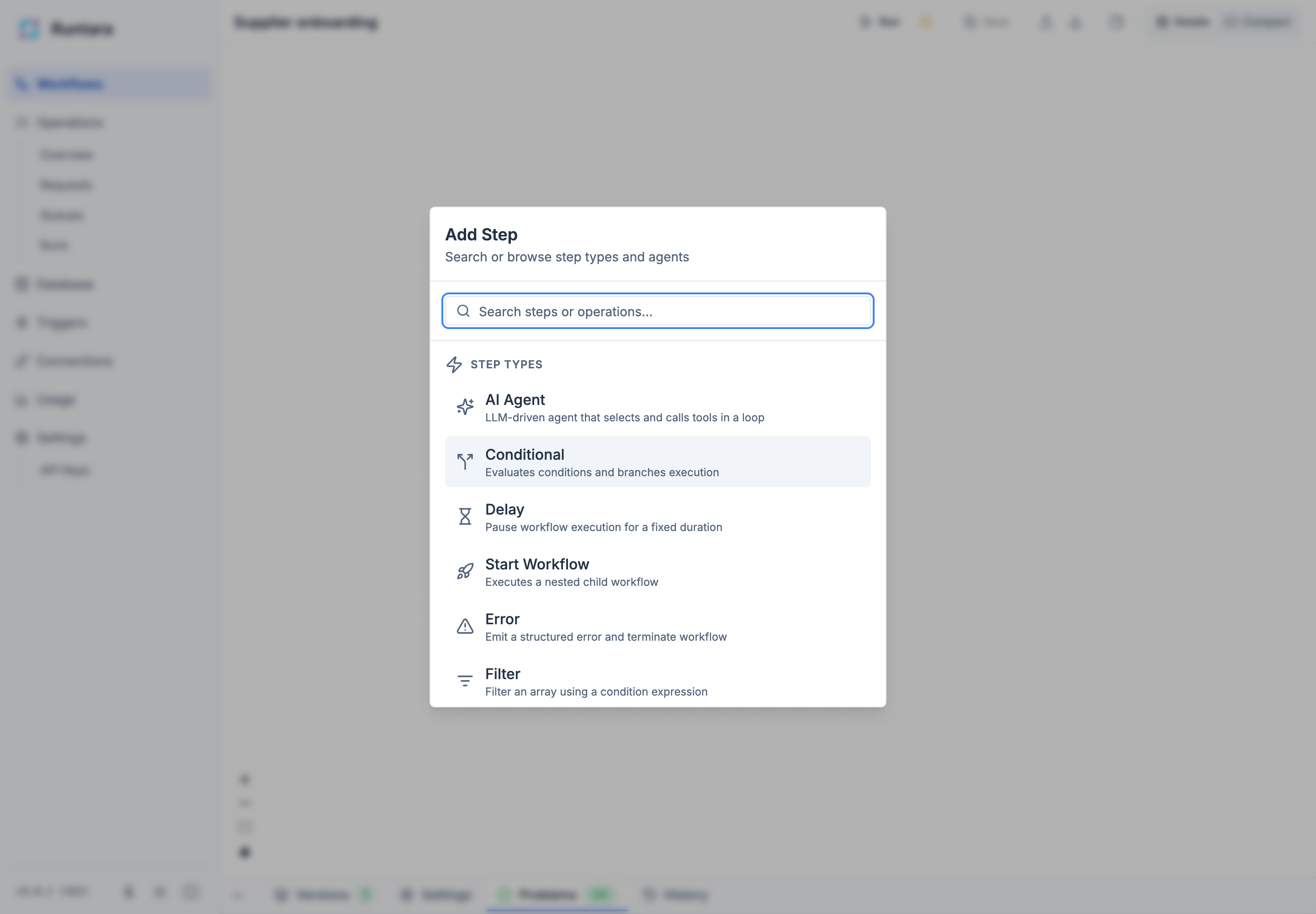
Step types
| Step | What it does |
|---|---|
| AI Agent | An AI model that decides which tools to call, in a loop, until it has an answer. |
| Conditional | Branches into a true and a false path. |
| Switch | Branches into one path per case, or picks a value per case. |
| Split | Runs a set of steps once for each item in a list. |
| While Loop | Repeats a set of steps while a condition is true. |
| Filter | Keeps the list items that match a condition. |
| Group By | Groups list items by a field. |
| Delay | Waits for a set time. |
| Wait for Signal | Pauses until a person or another system answers. |
| Wait for Instances | Pauses until child runs this run started have finished. |
| Start Workflow | Runs another workflow as a step. |
| Set State | Publishes values about the run, for Operations queues. |
| Get State | Reads the run’s published values. |
| Log | Writes a message to the run’s events. |
| Error | Ends the run, or the path, with a structured error. |
| Finish | Ends the run and defines its output. |
Agent steps call a system or service. They are listed under Agents.
Conditions
Conditional, Filter, While Loop, and route conditions all use the same condition editor. A condition compares values:
- Compare: Equals, Not Equals, Greater Than, Greater or Equal, Less Than, Less or Equal, In List, Not In List, Starts With, Ends With, Contains.
- Check: Is Empty, Is Not Empty, Is Defined, Length.
- Combine: Logical AND, OR, and NOT, nested as deep as you need.
Each side of a comparison is a fixed value (text, number, or true/false), a reference to data in the run, or another condition.
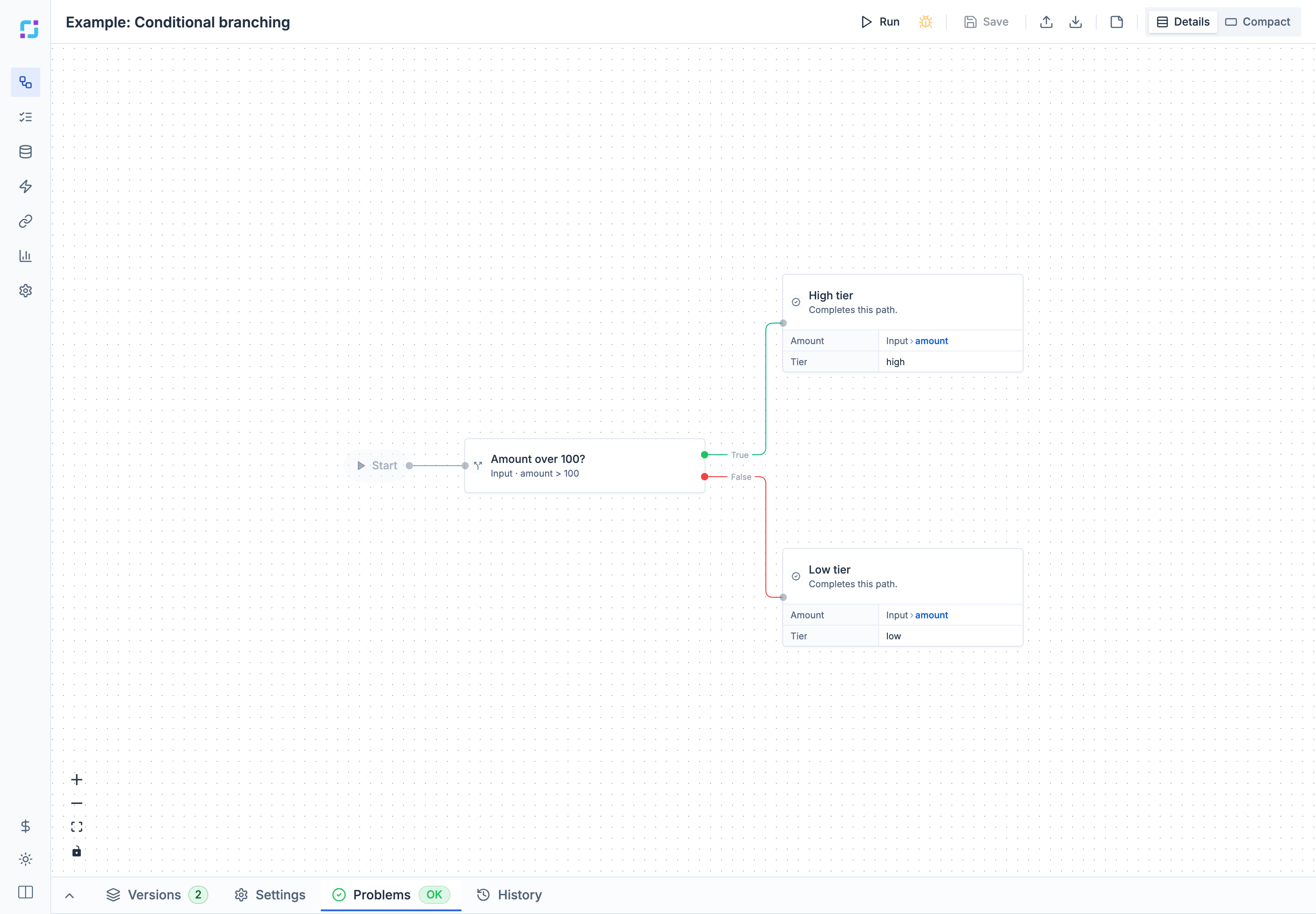
Conditional
Evaluates a condition and continues on the true or false output. In the Purchase order approval workflow, Amount over 1,000? sends larger orders to approval and smaller ones to auto-approval.
Error Templates fills in common conditions for routing errors, such as all transient errors, rate-limit errors, or authentication errors. Use them on error-handler paths.
Switch
Compares one Value to Switch On against a list of Cases. Each case has a match type (equality, comparison, range, list, text, or existence), a pattern, and an output value.
- With Routing Mode on, each case has its own output on the canvas, so the run follows the matching case.
- With Routing Mode off, the Switch only returns the matching case’s output value, for later steps to use.
- Add Default handles values that match no case. Without a default, an unmatched value fails the step.
Split
Runs the steps inside it once for each item of a list, then collects the results.
- Array Source: the list, for example
data.itemsorsteps.fetch.outputs.items. - Item Schema: the shape of each item. Inside the Split, the current item is available as
data.*. - Output Schema: what each iteration returns. The collected results are in the Split step’s outputs.
- Variables: values from outside to pass into every iteration, as
variables.*. Workflow variables are visible inside anyway; use this for earlier steps’ results, which are not. See Work with lists. - Execution Options: Continue on Failure keeps going when an item fails; Allow Null Input treats a missing list as empty; Convert Single Value wraps a single value into a one-item list.
- Parallelism above 1 runs items at the same time when each item runs a single Agent step with its retries set to 0, and the Split itself has no retries. Any other shape runs items one at a time, and saving warns with W073.
While Loop
Repeats the steps inside it while the Loop Condition is true. The condition can use iteration.index and the previous iteration’s outputs. Max Iterations is a safety limit; with 0 the loop never runs. Timeout limits the loop’s total time.
Filter
Keeps the items of an Array Source for which the Filter Condition is true. Refer to the item being tested as item.*.
Group By
Groups the items of an Array Source by a Group Key, such as status or customer.country. List Expected Keys to always get those groups, with a count of 0 when no items match.
Delay
Waits for Duration (ms), then continues. A durable run does not hold any resources while it waits, so long delays are safe.
Wait for Signal
Pauses the run until someone answers. This is how workflows ask people for approvals, reviews, and missing data, and how chat workflows wait for the next message.
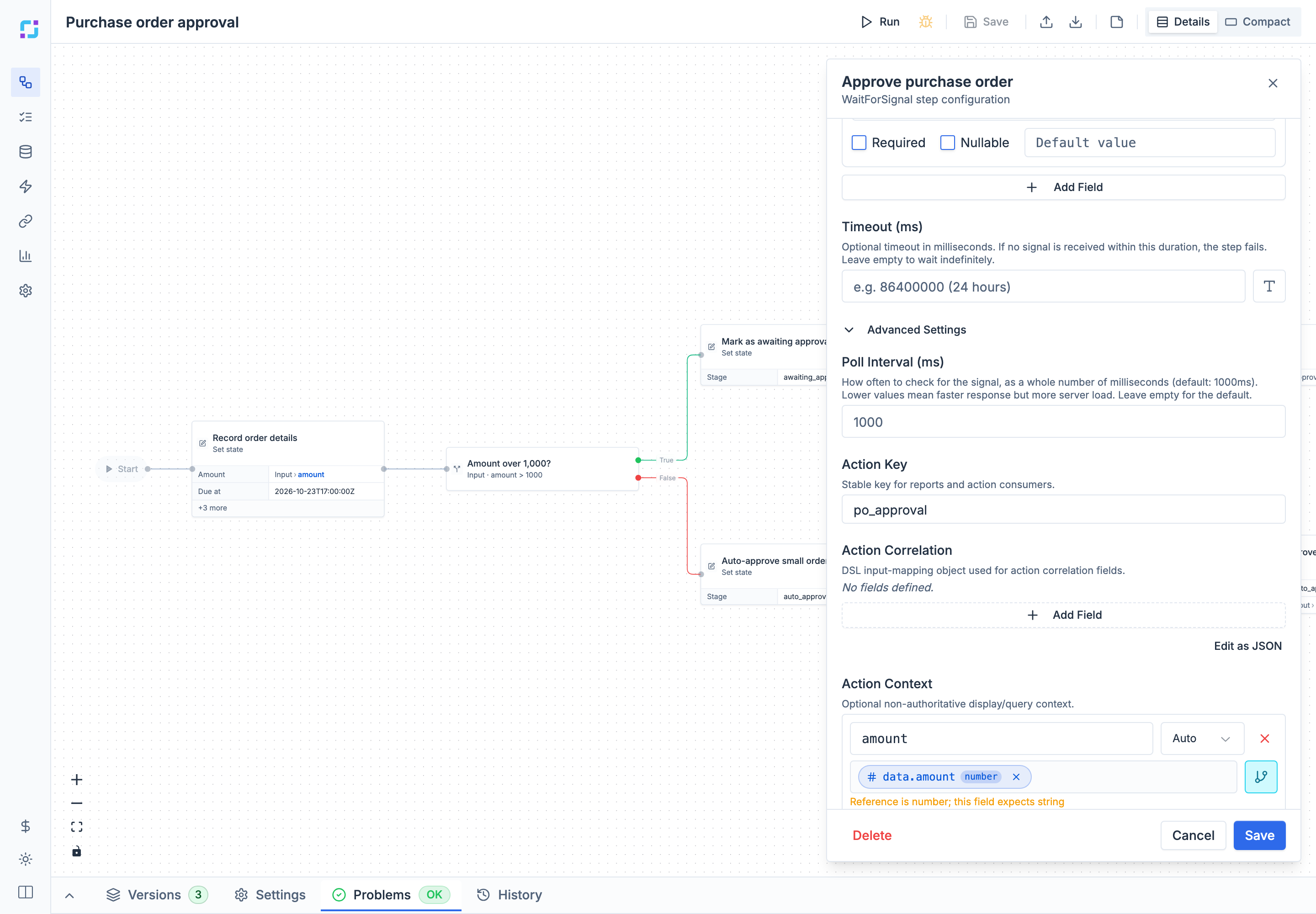
- Response Schema: the fields the person fills in. Each field has a name, a type, and whether it is required. The gear button adds labels, allowed values, minimum lengths, patterns, and rules such as “required when decision is reject”.
- Timeout (ms): fail the step if nobody answers in time. Leave it empty to wait indefinitely.
- Advanced Settings:
- Action Key: a stable name for this kind of decision, such as
po_approval. Required for the request to appear in Operations Requests and Queues. - Action Context: details shown next to the request, such as the amount and supplier.
- Action Correlation: fields that let another system find and answer this request.
- On-Wait Flow: steps to run as the wait starts, for example to send a notification with a link.
- Poll Interval (ms): no longer used.
- Action Key: a stable name for this kind of decision, such as
The answer is the step’s output: steps.<step id>.outputs.<field>. A Wait for Signal step can also be given to an AI Agent as a tool, so the agent can ask a person for help.
Wait for Instances
Pauses until child runs started by this run have finished. List their Instance IDs, choose All or Any, and optionally set a Timeout (ms). The workflow must be durable.
Start Workflow
Runs another workflow as a step and waits for its result. Choose the Child Workflow and its Version: Latest always uses the newest version, Current locks to the version that was active when you added the step, or pick a specific version. Then map values into the child’s inputs. Child runs appear under Child runs in the parent’s execution details.
Set State and Get State
Set State publishes values about the run: its stage, amount, owner, due date. Declare the fields first in Settings > State; the step then shows one row per field. Leave a field on Don’t write to keep its current value. Published state appears on the run page and drives Operations queue columns, filters, stages, and due dates.
Get State reads the current state, as steps.<step id>.outputs.<field>.
Log
Writes a Message with a Level (Debug, Info, Warn, or Error) and optional Context to the run’s events. Use it to leave breadcrumbs for whoever investigates a run later.
Error
Ends the path with a structured error: an Error Code, an Error Message, a Category (Transient: a retry may succeed; Permanent: do not retry), and a Severity (Info, Warning, Error, or Critical). Error steps are usually the target of an error handler. Their code and category appear in Runs and decide whether Retry is offered.
Finish
Ends the run and defines its output: map values to the output fields declared in Settings > Output, or add custom outputs. Add missing required fields adds any required output that is not mapped yet. A workflow can have several Finish steps, one per path.
AI Agent
An AI model that works towards a goal by calling tools in a loop.
- LLM Connection: an OpenAI or AWS connection. See Connections.
- System Prompt and User Prompt: the instructions and the task. Both can use templates and references.
- Model: pick one offered by the connection, or type a model identifier.
- Tools: on the canvas, select Add tool… to give the agent an agent capability, a Wait for Signal step (to ask a person), or a Start Workflow step. Add MCP toolset… connects the tools of an MCP server.
- Structured Output: an output schema, when you need fields rather than free text.
- Conversation Memory: keeps the conversation between runs, keyed by a Conversation ID such as
data.sessionId. Old messages are summarized or dropped when the history grows. - Advanced Settings: maximum tool-calling rounds (1-50), temperature, maximum tokens, retries, and the time limit per turn.
Agents
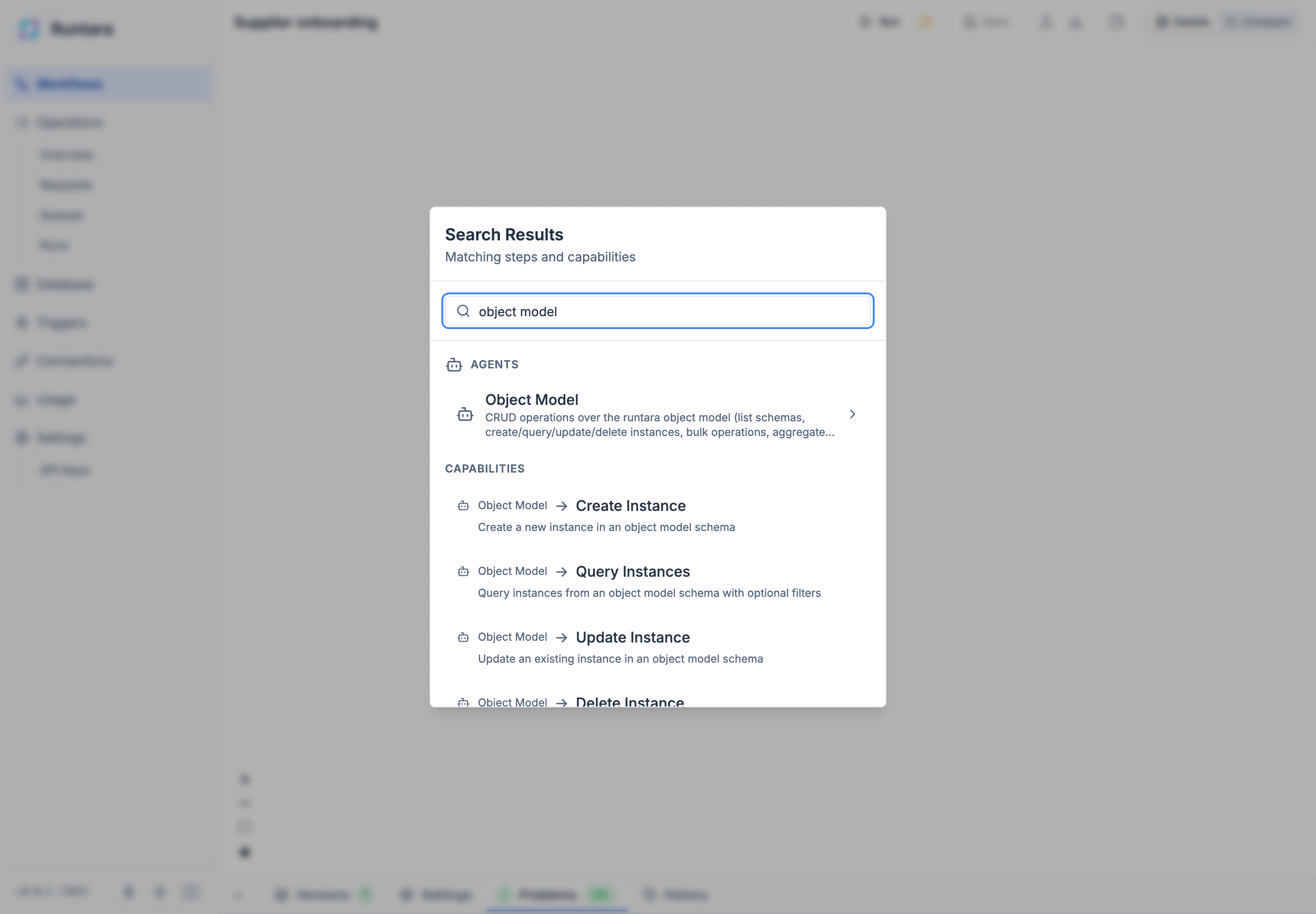
Agent steps call one capability of a built-in agent. After choosing an agent in the picker, choose its capability, then a connection if it needs one.
| Agent | What it does |
|---|---|
| AI Tools | Text completion, image generation, structured output, and vision with OpenAI or AWS models. |
| AWS Bedrock | The same AI capabilities through AWS Bedrock. |
| OpenAI | The same AI capabilities through OpenAI. |
| HTTP | Calls any HTTP API, with or without a connection. |
| MCP | Calls the tools of an external MCP server. Used through AI Agent toolsets. |
| Object Model | Reads and writes Database records, and runs SQL. |
| Control | Reads and coordinates other runs: start runs, answer their requests, check their status. |
| Shopify | Products, orders, inventory, and customers. |
| HubSpot | Contacts, companies, deals, quotes, and pipelines. |
| QuickBooks Online | Accounting records and reports. |
| Stripe | Customers, payments, invoices, and subscriptions. |
| Mailgun | Sends email. |
| Slack | Sends messages, files, and reactions. |
| Microsoft Teams | Sends messages through a Teams bot. |
| Microsoft SharePoint | Manages files through Microsoft Graph. |
| S3 Storage | Buckets and files in S3-compatible storage, and presigned links. |
| Azure Blob Storage | Containers and blobs, and SAS links. |
| SQS | Sends and receives messages on AWS SQS queues. |
| CSV | Reads and writes CSV. |
| Spreadsheet | Reads Excel and OpenDocument spreadsheets. |
| XML | Parses XML. |
| Compression | Creates, extracts, and lists ZIP archives. |
| Transform | Reshapes, filters, sorts, and combines data. |
| Text | Formats and manipulates text. |
| DateTime | Parses, formats, and calculates dates and times. |
| Crypto | Hashes and HMAC signatures. |
| Utils | Random numbers, math, country codes, and other helpers. |
Capabilities marked Long-running can park the run while they wait, for example for a slow external job. Their step must stay Durable and have a Timeout (ms) above 0.
Agents your plan does not include are hidden from the picker. A step that uses a disabled agent shows Agent disabled, and the workflow cannot be saved until the step is replaced.
For what each integration can do in detail, see Integrations.